Top 10 Java Debugging Tips 2020

One of the biggest nightmares for all developers is to debug their code. Debugging code written in Java is a tough task. Debugging is the process of determining and fixing bugs or errors present in the code, project, or application.

Debugging your application helps you improve the quality of the code. It is a must-have skill for every Java programmer. Debugging also helps you to understand the flow of the program code.

If you want to Gain In-depth Knowledge on Java, please go through this link Java Training

This article provides some tips to debug Java program code. We will highlight some common run-time issues and will use the GUI-based Eclipse IDE. There are other IDEs available like IntelliJ, and both IDEs have great support for Java debugging. You can set various line breakpoints, conditional breakpoints, and exception breakpoints. Eclipse also provides support for remote debugging.
So let’s explore these Java debugging tips.

  1. Use conditional breakpoint
  2. Use exception breakpoints
  3. Watchpoint
  4. Step filtering
  5. Evaluate (inspect and watch)
  6. Drop to frame
  7. Environment variables
  8. Show logical structure
  9. Modify values of variable
  10. Stop in Main

1. Use conditional breakpoint

A conditional breakpoint is a better approach if you are working with the Java programming language and debugging your code in Eclipse IDE. Eclipse allows you to use conditional breakpoints in order to remove bugs in the program code. It’s a breakpoint with a specified condition where the thread will stop at the targeted line when it’s true, unlike a line breakpoint.

This code snippet will be used as an example for setting up a conditional breakpoint.

public void demo1() {
    AList<String> li = pList();
    for (int i=0; i<li.size(); i++) {
        System.out.println(li.get(i));
    }
}

You are required to set up a breakpoint on a line inside the loop only when the value of the element li is equal to a specific value. To set up a conditional breakpoint, use the following steps: Lets see Java Online Training

  • Double-click on the line where you want to put a breakpoint.
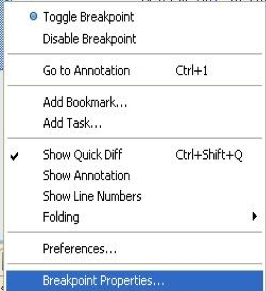
  • Right-click the breakpoint and select Breakpoint Properties as shown in Figure 1.
  • Tick the conditional checkbox under Breakpoint properties as shown in Figure 2.
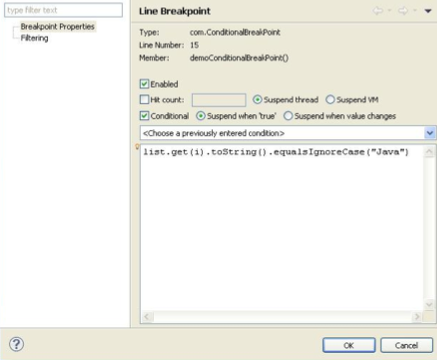
  • Put the condition as per your requirement in the text area and click on OK.

[Note: One thing you need to remember while specifying the condition is that it should return a Boolean value.]So when the specified condition is true, the program will stop but not otherwise. The program is now executing in the debug mode.

2. Use exception breakpoints

While debugging Java program code in Eclipse, you are often encountered with a NullPointerException error. Sometimes you are not aware of the origin of the error, which can be frustrating.

Developers of Eclipse have provided with a solution for such issues in the form of exception breakpoints. This feature is also available in the NetBeans IDE.

Now you can simply use an exception breakpoint for NullPointerException and ArrayIndexOutofBoundException.

The exception breakpoint can be easily set up from the breakpoint window.

Figure 3 shows the breakpoint window.
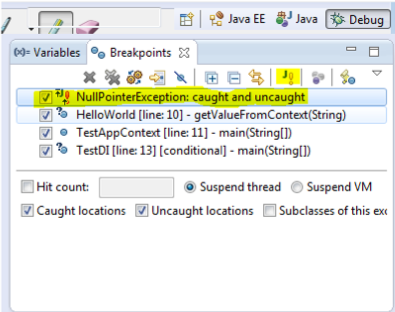
You can see that there is a button labeled J! in the breakpoint window. This button is used to put an exception breakpoint in the program code. The execution of the program will stop whenever the specified exception occurs.

3. Watchpoint

The watchpoint is a breakpoint set up on a field or variable. It is the best feature of the Eclipse IDE. Each time the targeted field or variable is accessed or changed, the execution of the program will get stop and then you can debug.

The following steps will help you to set up a watchpoint:

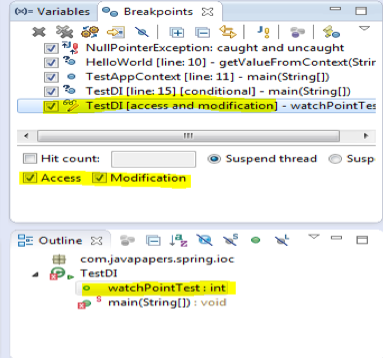
  • Double-click on the left-margin (just next to the field declaration). A sign will appear as shown in Figure 4.

  • Configure the properties of the watchpoint as shown in Figure 5. The program execution will halt each time the attribute is read or changed or both.
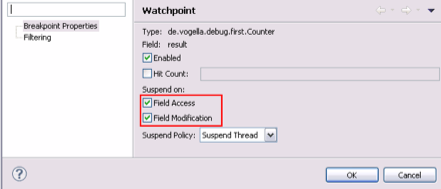
  • Once you have successfully set up the Watchpoint, then it will get listed in the Breakpoints view.
4. Step filtering

While performing Step Into during debugging process, sometimes it happens that the control of the program goes from one class to other class and eventually, you are moved to the external libraries or JDK classes like System or String.

In case you do not want to move to the JDK classes or external libraries, then step filtering is used. It will help you to filter out the JDK classes from Step Into. This feature will assist you in skipping some particular packages during the debugging process.

You can easily set up step filtering with the following steps:

  • Go to Windows.
  • Click on Preferences.
  • Click on Java.
  • Select Debug.
  • Choose Step Filtering.

A window will appear on your screen as shown in Figure 7.

Later, if you want to enable or disable the step filtering option, you can do it from the Debug window.

5. Evaluate (inspect and watch)

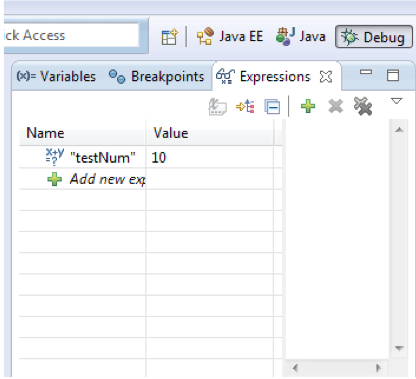
This is another good feature of the Eclipse IDE. This feature will enable you to check the value of expressions while debugging Java programs. All you need to do is right-click the statement and click on inspect. It will show you the value of the selected expression during the debugging process. The value will appear in front of you over the watch window.

Figure 8 illustrates the image of the watch window in which the value of an expression is displayed.
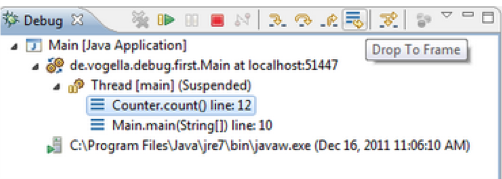
6. Drop to frame

Eclipse enables users to choose any frame (level) in the call stack during the debugging process and set the JVM to start again from the selected level. In simple words, it allows you to re-run a part of your program.

Take your career to new heights of success with an Core Java Online Training

[Note: The changes made to the variable will not be reset.]The following steps will help you use this feature:

  • Select the stack from where you want to start as shown in Figure 9.
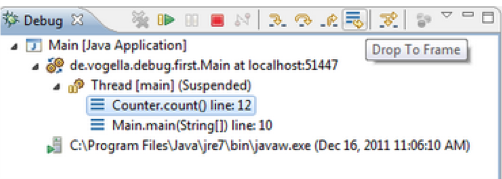
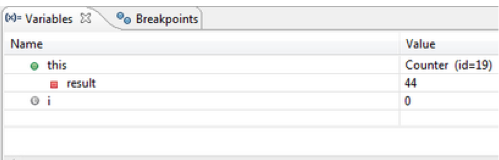
  • Click on the Drop to Frame button in the toolbar of the debug window. A new window will appear on the screen as displayed in Figure 10.
7. Environment variables

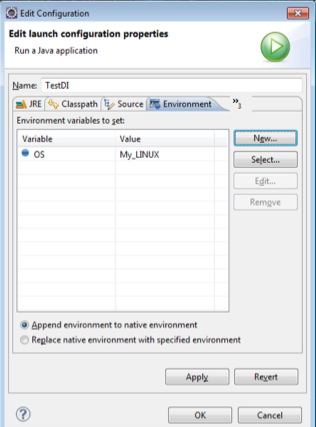
As you know, it is important to set up environment variables prior to coding in Java. We all are aware of how to set up environment variables. We need to go to the system properties in order to add an environment variable. Eclipse allows you to do it from the IDE itself.

There is no need to follow the traditional path to set the environment variables. You can easily do the same through Edit Configuration dialog box.

Figure 11 shows the image of the Edit Configuration dialog box.
8. Show logical structure

It is not easy to check the values of a map or a list with the default settings of the Eclipse. You need to edit them or choose another way.

The logical structure option is very useful, especially when trying to determine the contents of Java collection classes such as HashMap or ArrayList. Instead of displaying the detailed information, the logical structure will present only the necessary content such as the key and value of a HashMap.

You can easily enable the Show Logical Structure option with the help of a button. This option is very handy, especially if you don’t have meaningful toString() methods for the objects in your structure.

Figure 12 displays the position of show logical structure button.
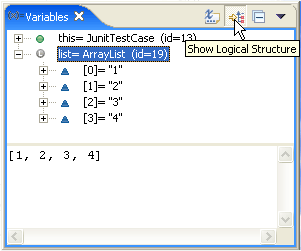
Image result for show logical structure eclipse

FIGURE 12: SHOW LOGICAL STRUCTURE

9. Modify the value of a variable

Eclipse allows you to change the values of variables during the debugging process. There is no need to restart your debugging session with minor changes in the code. You can continue to debug the program code. It will save time.

Figure 13 shows how to change the value of a variable.
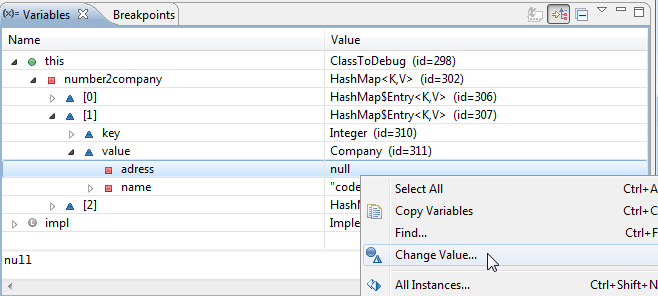
Change Value

FIGURE 13: CHANGING THE VARIABLE’S VALUE

10. Stop in Main

This feature is present in the Edit configuration window of the Debug settings. When a program is debugged with this feature enabled, the execution will stop at the first line of the main function.

In order to enable this feature, open the Edit configuration window and mark the checkbox which states stop in main.

Figure 14 illustrates how to enable the stop in the main feature.
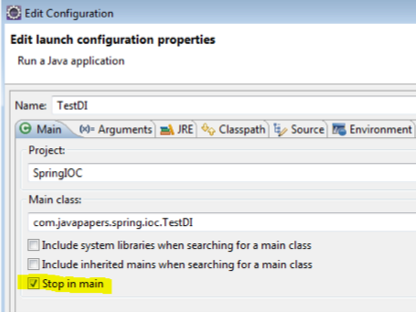
Common tips

Apart from the above-mentioned tips, I’ve listed some common tips below.

  • In case you want to copy the entire stack of a thread, you can do so with the help of the Copy Stack option. Right-click on the thread in the Debug Window and select “Copy Stack”.
  • You can also suspend and resume threads while debugging Java program code through the debug window. Right-click on any thread and select suspend or resume, as desired. This is a very helpful feature while debugging multi-threaded programs.
  • With the help of the Step Into (F5) feature, you can move to the next step and check whether the current line has a method call or not. If yes, then the control will go to the first line of the called method.
  • The Step over (F6) feature will help you to move control to the next line. If there is any method call present at the current line, it will be executed first, and control will only move to the next line.
  • Under the step return (F7) option, control will go to that line where the current method is called or invoked.
Java – String Class and its methods explained with examples

A string is a sequence of characters, for e.g. “Hello” is a string of 5 characters. In java, a string is an immutable object which means it is constant and can not be changed once it has been created.

Creating a String

There are two ways to create a String in Java

  1. String literal
  2. Using a new keyword

String literal

In java, Strings can be created like this: Assigning a String literal to a String instance:

To get in-Depth knowledge on Java you can enroll for a live demo on Java Online Training

String str1 = "Welcome";
String str2 = "Welcome";

The problem with this approach: As I stated in the beginning that String is an object in Java. However, we have not created any string object using the new keyword above. The compiler does that task for us it creates a string object having the string literal (that we have provided, in this case, it is “Welcome”) and assigns it to the provided string instances.

But if the object already exists in the memory it does not create a new Object rather it assigns the same old object to the new instance, that means even though we have two string instances above(str1 and str2) compiler only created on string object (having the value “Welcome”) and assigned the same to both the instances. For example, there are 10 string instances that have the same value, it means that in memory there is only one object having the value and all the 10 string instances would be pointing to the same object.

What if we want to have two different object with the same string? For that, we would need to create strings using the new keyword.

Take your career to new heights of success with Java Training

Using New Keyword

As we saw above that when we tried to assign the same string object to two different literals, compiler only created one object and made both of the literals to point the same object. To overcome that approach we can create strings like this:

String str1 = new String("Welcome");
String str2 = new String("Welcome");

In this case compiler would create two different object in memory having the same string.

A Simple Java String Example

public class Example{  
   public static void main(String args[]){  
	//creating a string by java string literal 
	String str = "Beginnersbook"; 
	char arrch[]={'h','e','l','l','o'}; 
	//converting char array arrch[] to string str2
	String str2 = new String(arrch); 
		
	//creating another java string str3 by using new keyword 
	String str3 = new String("Java String Example"); 
		
	//Displaying all the three strings
	System.out.println(str);  
	System.out.println(str2);  
	System.out.println(str3);  
   }
}

Output:

Beginnersbook
hello
Java String Example

Java String Methods

Here are the list of the methods available in the Java String class. These methods are explained in the separate tutorials with the help of examples. Links to the tutorials are provided below:

  1. char charAt(int index): It returns the character at the specified index. Specified index value should be between 0 to length() -1 both inclusive. It throws IndexOutOfBoundsException if index<0||>= length of String.
  2. boolean equals(Object obj): Compares the string with the specified string and returns true if both matches else false.
  3. boolean equalsIgnoreCase(String string): It works same as equals method but it doesn’t consider the case while comparing strings. It does a case insensitive comparison.
  4. int compareTo(String string): This method compares the two strings based on the Unicode value of each character in the strings.
  5. int compareToIgnoreCase(String string): Same as CompareTo method however it ignores the case during comparison.
  6. boolean startsWith(String prefix, int offset): It checks whether the substring (starting from the specified offset index) is having the specified prefix or not.
  7. boolean startsWith(String prefix): It tests whether the string is having specified prefix, if yes then it returns true else false.
  8. boolean endsWith(String suffix): Checks whether the string ends with the specified suffix.
  9. int hashCode(): It returns the hash code of the string.
  10. int indexOf(int ch): Returns the index of first occurrence of the specified character ch in the string.
  11. int indexOf(int ch, int fromIndex): Same as indexOf method however it starts searching in the string from the specified fromIndex.
  12. int lastIndexOf(int ch): It returns the last occurrence of the character ch in the string.
  13. int lastIndexOf(int ch, int fromIndex): Same as lastIndexOf(int ch) method, it starts search from fromIndex.
  14. int indexOf(String str): This method returns the index of first occurrence of specified substring str.
  15. int lastindexOf(String str): Returns the index of last occurrence of string str.
  16. String substring(int beginIndex): It returns the substring of the string. The substring starts with the character at the specified index.
  17. String substring(int beginIndex, int endIndex): Returns the substring. The substring starts with character at beginIndex and ends with the character at endIndex.
  18. String concat(String str): Concatenates the specified string “str” at the end of the string.
  19. String replace(char oldChar, char newChar): It returns the new updated string after changing all the occurrences of oldChar with the newChar.
  20. boolean contains(CharSequence s): It checks whether the string contains the specified sequence of char values. If yes then it returns true else false. It throws NullPointerException of ‘s’ is null.
  21. String toUpperCase(Locale locale): Converts the string to upper case string using the rules defined by specified locale.
  22. String toUpperCase(): Equivalent to toUpperCase(Locale.getDefault()).
  23. public String intern(): This method searches the specified string in the memory pool and if it is found then it returns the reference of it, else it allocates the memory space to the specified string and assign the reference to it.
  24. public boolean isEmpty(): This method returns true if the given string has 0 length. If the length of the specified Java String is non-zero then it returns false.
  25. public static String join(): This method joins the given strings using the specified delimiter and returns the concatenated Java String
  26. String replaceFirst(String regex, String replacement): It replaces the first occurrence of substring that fits the given regular expression “regex” with the specified replacement string.
  27. String replaceAll(String regex, String replacement): It replaces all the occurrences of substrings that fits the regular expression regex with the replacement string.
  28. String[] split(String regex, int limit): It splits the string and returns the array of substrings that matches the given regular expression. limit is a result threshold here.
  29. String[] split(String regex): Same as split(String regex, int limit) method however it does not have any threshold limit.
  30. String toLowerCase(Locale locale): It converts the string to lower case string using the rules defined by given locale.
  31. public static String format(): This method returns a formatted java String
  32. String toLowerCase(): Equivalent to toLowerCase(Locale. getDefault()).
  33. String trim(): Returns the substring after omitting leading and trailing white spaces from the original string.
  34. char[] toCharArray(): Converts the string to a character array.
  35. static String copyValueOf(char[] data): It returns a string that contains the characters of the specified character array.
  36. static String copyValueOf(char[] data, int offset, int count): Same as above method with two extra arguments – initial offset of subarray and length of subarray.
  37. void getChars(int srcBegin, int srcEnd, char[] dest, int destBegin): It copies the characters of src array to the dest array. Only the specified range is being copied(srcBegin to srcEnd) to the dest subarray(starting fromdestBegin).
  38. static String valueOf(): This method returns a string representation of passed arguments such as int, long, float, double, char and char array.
  39. boolean contentEquals(StringBuffer sb): It compares the string to the specified string buffer.
  40. boolean regionMatches(int srcoffset, String dest, int destoffset, int len): It compares the substring of input to the substring of specified string.
  41. boolean regionMatches(boolean ignoreCase, int srcoffset, String dest, int destoffset, int len): Another variation of regionMatches method with the extra boolean argument to specify whether the comparison is case sensitive or case insensitive.
  42. byte[] getBytes(String charsetName): It converts the String into sequence of bytes using the specified charset encoding and returns the array of resulted bytes.
  43. byte[] getBytes(): This method is similar to the above method it just uses the default charset encoding for converting the string into sequence of bytes.
  44. int length(): It returns the length of a String.
  45. boolean matches(String regex): It checks whether the String is matching with the specified regular expression regex.
  46. int codePointAt(int index):It is similar to the charAt method however it returns the Unicode code point value of specified index rather than the character itself.

Why AngularJs is Used

1. Why AngularJS is Used?

AngularJS use in different sectors of the market. Here, we are providing a list of uses of AngularJS with examples:

  • Travel Application
  • Weather Application
  • User-Generated Content Portals
  • Mobile Commerce
  • E-Commerce
  • Video Streaming Application
  • User Review Application

i. Travel Application

Travel application makes it easy to plan a trip. Now, in this world of technology, there is no need to go to a travel agent. One can do the same work on its own.

Example – JetBlue’s application

It is an application, which is used for various purposes such as searching for a flight, changing the seat, booking a trip, canceling a flight, tracking flights.

To get in-Depth knowledge on Angularjs you can enroll for a live demo on Angularjs Online Training

ii. Weather Application

To know about the weather, the weather application has been built. It can help us to know about the weather condition of any place even by sitting far away from that place.

Example– Weather.com

Weather.com is the weather forecasting application that is built using angular.

iii. User-Generated Content Portals

These are those portals in which user can upload its content on its own.

Example – Freelancer.com

It is a platform where employers can post their projects then interested freelancers bids for it. According to their interest, employers choose their freelancers and then employers pay to freelancers as per their deal.

Take your career to new heights of success with Angular Training

iv. E-Commerce

Angular provides a way through which an e-commerce website is easy to build.

Now, anyone can easily buy a product or sell a product using online service

Example – PayPal

“Pay with PayPal, safe hai”. One can check out in the easiest and faster manner using PayPal even if you are shopping outside India.

v. Mobile Commerce

Mobile commerce in short abbreviated as m-commerce. It provides a way to buy and sell goods through wireless devices such as mobile phones.

Example – Mallzee

It is a personal shopping application for buying goods. It allows people to browse over a wide range of fashion brands over the world.

vi. Video Streaming Applications

With the help of AngularJS, we can build applications for uploading and streaming videos.

Example– Netflix, Youtube for Sony ps3

vii. User Review Applications

Everyone wants to know about a service or product before using it so that they can get familiar with what are they using, how it works, what are its advantages and disadvantages and other queries he/she wants to know about that product or service.

I hope, you liked our explanation.

To learn more about the great features of Angular, you can enroll for a live demo on Angular Online Training

AngularJS Custom Directives

Custom Directive Introduction

AngularJS directives are what controls the rendering of the HTML inside an AngularJS application. Examples of directives are the interpolation directive ( {{ }} ), the ng-repeat directive and ng-if directive.

It is possible to implement your own directives too. This is what AngularJS refers to as “teaching HTML new tricks”. This text will show you how to do that.

To learn more about AngularJS Custom Directives and other great features of AngularJS , you can enroll for a live demo on Angularjs Online Training

Directive Types

You can implement the following types of directives:

  • Element directives
  • Attribute directives
  • CSS class directives
  • Comment directives

Of these, AngularJS recommends that you try to use element and attribute directives, and leave the CSS class and comment directives (unless absolutely necessary).

The type of a directive determines how the directive is activated. An element directive is activated when AngularJS finds a matching HTML element in the HTML template. An attribute directive is activated when AngularJS finds a matching HTML element attribute. A CSS class directive is activated when AngularJS finds a matching CSS Class. And, a comment directive is activated when AngularJS finds a matching HTML comment.

Take your career to new heights of success with Angular Online Training

A Basic Directive

You register a directive with a module. Here is an example of how that looks:

myapp = angular.module("myapp", []);
myapp.directive('div', function() {
    var directive = {};
    directive.restrict = 'E'; /* restrict this directive to elements */
    directive.template = "My first directive: {{textToInsert}}";
    return directive;
});

Notice the call to the directive() function on the module. When you call this function you can register a new directive. The first parameter to the directive() function call is the name of the directive to register. This name is what you use in your HTML templates when you want to activate the directive. In this example I have used the name ‘div‘ which means that the directive is activated every time an HTML element named div is found in the HTML template.

To get in-Depth knowledge on Angularjs you can enroll for a live demo on Angular Training

The second parameter passed to the directive function is a factory function. This function should return a directive definition when invoked. AngularJS will invoke this function to obtain a JavaScript object which contains the definition of the directive. If you look inside the function in the above example you will see that it does indeed return a JavaScript object.

The JavaScript object returned from the factory function has two properties: A restrict field and a template field.

The restrict field is used to set if the directive should be activated by a matching HTML element, or an element attribute. By setting restrict to E you specify that only HTML elements named div should activate the directive. By setting restrict to A you specify that only HTML attributes named div should activate the directive. You can also use a value of AE which will match both HTML element names and attribute names.

The template field is an HTML template that will replace the content of the matched div element. It will work as if the content of the matched div element had not been there, and instead this HTML template had been located in the same place.

Imagine that your HTML page has this HTML:

<div ng-controller="MyController" >
    <div>This div will be replaced</div>
</div>

Then the added directive would be activated when AngularJS finds the inner div element. Instead of this div element, this HTML will be inserted:

My first directive: {{textToInsert}}

As you can see, this HTML contains an interpolation directive ({{textToInsert}}). AngularJS will interpret this HTML again, so that the interpolation directive actually works. The value of the $scope.textToInsert property will be inserted at this point in the HTML.

The template and templateUrl Properties

The easiest way to create your own directives is as shown in the example above. Your directive is intended to generate HTML, and you put that HTML inside the template attribute of the directive definition object. Here is the directive definition repeated from earlier, with the template string marked in bold:

myapp = angular.module("myapp", []);
myapp.directive('div', function() {
    var directive = {};
    directive.restrict = 'E'; /* restrict this directive to elements */
    directive.template = "My first directive: {{textToInsert}}";
    return directive;
});

In case that HTML template grows big, it is gets hard to write and maintain the HTML inside a JavaScript string. You can then put the HTML into its own file and have AngularJS load it from that file. You do so by putting the URL of the HTML template file into the templateUrl property of the directive definition object. Here is an example:

myapp = angular.module("myapp", []);
myapp.directive('div', function() {
    var directive = {};
    directive.restrict = 'E'; /* restrict this directive to elements */
    directive.templateUrl = "/myapp/html-templates/div-template.html";
    return directive;
});

AngularJS will now load the HTML template from the URL set in the templateUrl property.

Using the separate HTML template file and the templateUrl property is especially useful when you create more specialized directives, like a directives showing user info. Here is an example:

myapp = angular.module("myapp", []);
myapp.directive('userinfo', function() {
    var directive = {};
    directive.restrict = 'E'; /* restrict this directive to elements */
    directive.templateUrl = "/myapp/html-templates/userinfo-template.html";
    return directive;
});

This example creates a directive that is activated whenever AngularJS finds a <userinfo> element. AngularJS loads the HTML template found at /myapp/html-templates/userinfo-template.html, and interprets that as if it had been located inside the parent HTML file from the beginning.

Isolating the $scope From the Directive

In the example above the userinfo directive was bound hard to the $scope variable because the HTML template referenced the textToInsert property directly. Referencing $scope variables directly makes it hard to reuse the directive more than once within the same controller, since the $scope variables typically have the same values everywhere inside the same controller. For instance, if you wanted to have this HTML in your page:

<userinfo></userinfo>

Then the two <userinfo> elements would be replaced by the same HTML template, which is bound to the same $scope variable. The result would be that the two <userinfo> elements would be replaced by the exact same HTML code.

To be able to bind the two <userinfo> elements to different values in the $scope object, you need to bind the HTML template to an isolate scope.

An isolate scope is a separate scope object tied to the directive. Here is how you define it in the directive definition object:

myapp.directive('userinfo', function() {
    var directive = {};
    directive.restrict = 'E';
    directive.template = "User : {{user.firstName}} {{user.lastName}}";
    directive.scope = {
        user : "=user"
    }
    return directive;
})

Notice how the HTML template has two interpolation directives bound to {{user.firstName}} and {{user.lastName}}. Notice the user. part. And notice the directive.scope property. The directive.scope property is a JavaScript object which contains a property named user. The directive.scope property is the isolate scope object, and the HTML template is now bound to the directive.scope.user object (via the {{user.firstName}} and {{user.lastName}} interpolation directives).

The directive.scope.user property is set to "=user". That means, that the directive.scope.user property is bound to the property in the scope property (not in the isolate scope) with the name passed to the user attribute of the <userinfo> element. It sounds confusing, so look at this HTML example:

<userinfo user="jakob"></userinfo>
<userinfo user="john"></userinfo>

These two <userinfo> element contain a user attribute. The value of these attributes contain the names of properties in the $scope object which are to be referenced by the isolate scope object’s userinfo property.

Here is a full example:

<userinfo user="jakob"></userinfo>
<userinfo user="john"></userinfo>
<script>
myapp.directive('userinfo', function() {
    var directive = {};
    directive.restrict = 'E';
    directive.template = "User : <b>{{user.firstName}}</b> <b>{{user.lastName}}</b>";
    directive.scope = {
        user : "=user"
    }
    return directive;
});
myapp.controller("MyController", function($scope, $http) {
    $scope.jakob = {};
    $scope.jakob.firstName = "Jakob";
    $scope.jakob.lastName  = "Jenkov";
    $scope.john = {};
    $scope.john.firstName = "John";
    $scope.john.lastName  = "Doe";
});
</script>


The compile() and link() Functions

If you need to do something more advanced inside your directive, something that you cannot do with an HTML template, you can use the compile() and link() functions instead.

The compile() and link() functions define how the directive is to modify the HTML that matched the directive.

The compile() function is called once for each occurrence of the directive in the HTML page. The compile() function can then do any one-time configuration needed of the element containing the directive.

The compile() function finishes by returning the link() function. The link() function is called every time the element is to be bound to data in the $scope object.

As mentioned, you add the compile() function to the directive definition object, and the compile() function has to return the link() function when executed. Here is how that looks:

<script>
myapp = angular.module("myapp", []);
myapp.directive('userinfo', function() {
    var directive = {};
    directive.restrict = 'E'; /* restrict this directive to elements */
    directive.compile = function(element, attributes) {
        // do one-time configuration of element.
        var linkFunction = function($scope, element, atttributes) {
            // bind element to data in $scope
        }
        return linkFunction;
    }
    return directive;
});    
</script>


The compile() function takes two parameters: The element and attributes parameters.

The element parameter is a jqLite wrapped DOM element. AngularJS contains a lite version of jQuery to help you do DOM manipulation, so the element‘s DOM manipulation methods are the same as you know from jQuery.

The attributes parameter is a JavaScript object containing properties for all the attributes of the DOM element. Thus, to access an attribute named type you would write attributes.type.

The link() function takes three parameters: The $scope parameter, the element parameter and the attributes parameter. The element and attributes parameter is the same as passed to the compile() function. The $scope parameter is the normal scope object, or an isolate scope in case you have specified one in the directive definition object.

The compile() and link() function names are actually confusing. They are inspired by compiler terms. I can see the resemblance, but a compiler parses an input once, and creates an output. A directive configures an HTML element and then updates that HTML subsequently whenever the $scope object changes.

A better name for the compile() function would have been something like create()init() or configure(). Something that signals that this function is only called once.

A better name for the link() function would have been something like bind() or render(), which signals that this function is called whenever the directive needs to bind data to it, or to re-render it.

Here is a full example that shows a directive that uses both a compile() and link() function:

<div ng-controller="MyController" >
    <userinfo >This will be replaced</userinfo>
</div>
<script>
    myapp = angular.module("myapp", []);
    myapp.directive('userinfo', function() {
        var directive = {};
        directive.restrict = 'E'; /* restrict this directive to elements */
        directive.compile = function(element, attributes) {
            element.css("border", "1px solid #cccccc");
            var linkFunction = function($scope, element, attributes) {
                element.html("This is the new content: " + $scope.firstName);
                element.css("background-color", "#ffff00");
            }
            return linkFunction;
        }
        return directive;
    })
    myapp.controller("MyController", function($scope, $http) {
        $scope.cssClass = "notificationDiv";
        $scope.firstName = "Jakob";
        $scope.doClick = function() {
            console.log("doClick() called");
        }
    });
</script>
The compile() function sets a border on the HTML element. This is only executed once because the compile() function is only executed once.

The link() function replaces the content of the HTML element, and sets the background color to yellow.

There is no particular reason why the border was set in the compile() function, and the background color in the link() function. Both could have been set in the compile() function, or both in the link() function. If set in the compile() function they would only have been set once (which is often what you want). If set in the link() function they would be set every time the HTML element is bound to data in the $scope object. This might be useful if you needed to set the border and background color differently depending on data in the $scope object.

Setting Only a link() Function

Sometimes you do not need the compile() step for your directive. You only need th link() function. In that case you can set the link() function directly on the directive definition object. Here is the example from before, with only a link function:

<div ng-controller="MyController" >
    <userinfo >This will be replaced</userinfo>
</div>
<script>
    myapp = angular.module("myapp", []);
    myapp.directive('userinfo', function() {
        var directive = {};
        directive.restrict = 'E'; /* restrict this directive to elements */
        directive.link = function($scope, element, attributes) {
                element.html("This is the new content: " + $scope.firstName);
                element.css("background-color", "#ffff00");
        }
        return directive;
    })
    myapp.controller("MyController", function($scope, $http) {
        $scope.cssClass = "notificationDiv";
        $scope.firstName = "Jakob";
        $scope.doClick = function() {
            console.log("doClick() called");
        }
    });
</script>

Notice how the link() function does the same as the link() function returned in the previous example.

Directives Which Wraps Elements Via Transclusion

The examples we have seen so far all set the content of the element matching the directive themselves, either via JavaScript code or an HTML template. But what if you wanted a directive to wrap elements inserted into the directive body by the developer? For instance:

<mytransclude>This is a transcluded directive {{firstName}}
</mytransclude>

The directive is marked by the <mytransclude> element. But the content inside it is set by the developer. Thus, this part of the HTML should not be replaced by the directive’s HTML template. We actually want that part of the HTML to be processed by AngularJS. This processing is called “transclusion”.

In order to make AngularJS process the HTML inside a directive, you have to set the transclude property of the directive definition object to true. You will also have to tell AngularJS what part of the directive’s HTML template that is to contain the transcluded HTML. You do so by inserting the ng-transclude attribute (a directive, really) into the HTML element in the HTML template where you want the transcluded HTML inserted.

Here is an AngularJS directive that shows how to use transclusion:

<mytransclude>This is a transcluded directive {{firstName}}</mytransclude>
<script>
    myapp = angular.module("myapp", []);
    myapp.directive('mytransclude', function() {
        var directive = {};
        directive.restrict = 'E'; /* restrict this directive to elements */
        directive.transclude = true;
        directive.template = "<div class='myTransclude' ng-transclude></div>";
        return directive;
    });
    myapp.controller("MyController", function($scope, $http) {
        $scope.firstName = "Jakob";
    });
</script>

Notice the HTML inside the <mytransclude> element. This HTML code contains the interpolation directive {{firstName}}. We want AngularJS to process this HTML for us so that interpolation directive is executed. To achieve that I have set the transclude property to true on the directive definition object. I have also inserted an ng-transclude attribute into the HTML template. This attribute tells AngularJS what element to insert the transcluded HTML into.

Difference Between Angular Js Vs Angular & How To Migrate?

Angular made an entry in the year 2010 and has let the development to expand & evolve exponentially, and as the requirements have grown the much better versions came into existence.

It goes without saying but Angular has been ruling the field of open-source JavaScript frameworks, has attained immense support from enterprises.

In this post, we’ve compiled some of the essentials, facts, comparisons and the migrating procedure for you to understand the differences Angular holds and be ready to create a difference to your digital product.

To get in-Depth knowledge on Angularjs you can enroll for a live demo on Angularjs Online Training

Let’ read this post and find out more.

Surprising facts about Different Versions of Angular

  • AngularJS is also known as Angular 1.
  • It was designed especially for single-page web apps which would be fully owned by Google and was announced in the year 2010.
  • It is an open-source JavaScript.
  • Has a front-end web application framework.
  • Uses HTML as a template language
  • It is readable, expressive and gets fast development.
  • Angular 2 and 4 are open-source, fitting for the web application platforms’ requirements.
  • Angular 4 is newest in Angular league and is backward compatible with Angular 2.
  • Angular 2 is a well-built and completed rework version of Angular, which is compatible with mobile devices.
  • Developers can select the number of languages such as ES5, ES6, or TypeScript to write the codes of Angular 2.
  • There was no release of Angular 3.
  • Angular 4 was released on March 6, 2017, and is found to be compatible with most of the applications.
  • Angular 4 has not many changes from Angular 2.
  • With Angular 4 the better ways to fix the bugs and get the alerts in a better way.
  • Angular five was launched in November 2017.
  • This Angular version holds some biggest changes and has better functionalities than its past versions.
  • Angular 5 lets the Build Optimizer to be created with the Angular CLI, allowing to apply build optimizer by default.
  • The Angular Universal State Transfer also given that supports API and DOM.
  • Take your career to new heights of success with Angular Online Training

How Angular is different from Angular JS?

A very valid question, and which is mostly been asked as well, so without any further ado, let’s take a quick look at how AngularJS is different from Angular and how it has evolved.

Architecture

  • The structural concept of AngularJS is the model-view-controller (MVC) design basis, which proffers the central authority to express the very behavior of the application and further help them to manage the data, logic, and rules. With controller takes input, and converts into commands and further shares the commands to model and view.
  • With the advanced version of Angular 2, the controllers along with the $scope got changed with components and further with directives, transforming the components into directives that hold the template. Now they can manage the app view and page logic. Angular 2 has 2 directives largely; structural directives to change DOM layout by removing or replacing elements, which further transform the DOM elements and their specific behavior and appearance.
  • The very derivatives ngIf and ngFor in Angular 4 are much improved, and allow developers to utilize if or else design syntax in the templates.

Language

  • AngularJS is complied & written in JavaScript only.
  • TypeScript language from Microsoft is utilized in Angular, and has ECMAScript 6 (ES6). It further has the dual benefits of features from TypeScript features, and receive the benefits of ES6, like iterators and lambdas.
  • Angular 4 works well with TypeScript, and have the powerful type checking and object-oriented feature.
  • Get More Info On Angular Training

Expression Syntax

  • AngularJS- In order to bind the image/property or an event with the AngularJS, you must remember that accurate ng directive.
  • Angular- Angular utilizes “( )” for event binding and “[ ]” for the property binding.

Mobile Support

  • AngularJS never had mobile support, since it was designed with a different perspective.
  • However, the Angular 2 and 4 hold the functionalities within their platform, which feature mobile support.

Routing

  • AngularJS utilizes the $routeprovider. when() has to be configured routing
  • Angular utilizes @RouteConfig{(…)}.

Performance

  • To be précised, the very existence of AngularJS was done majorly for the designers, and with time this platform has received a major set of improvements in the design, and functionalities, however, it did not suffice the need of the hour.
  • Hence the subsequent versions, Angular 2 and Angular 4 are here to transmute the complete performance, speed, and dependency injection.

peed

  • With the current technological advancements, 2-way binding has lessened the development effort and time in AngularJS. Earlier the page loading took time during processing at the client’s end.
  • But this very issue was addressed by the Angular2 formed structure that helped in creating with ease and maintaining huge data-driven applications. It goes without saying but this helped in the better and well-formed mechanisms. Also in this race, the Angular 4 has got the fastest version.

Dependency injection

  • The complete mechanism of Angular is integrated with a unidirectional tree, which holds the change- detection. You will get to see that it uses a unique system called Hierarchical Dependency Injection, ensuring to encourage framework performance.

A Quick Look At The Pros & Cons

Pros

  • Unit testing can be done at any point
  • It offers incredible data binding for MVC that helps in making the faster process of app development.
  • Developers can use the declarative language; HTML to help it turn more intuitive.
  • No wonder but it provides the much-structured front-end development process, as it is no need for any further frameworks or plugins to work upon.
  • Developers can run AngularJS apps on iOS and Android devices, including phones & tablets.

Cons

  • It can be found that it is not just big but also complicated, and the credit goes to multiple ways of performing the same thing.
  • You may find the implementations scale little rough and poor
  • On disabling the javascript of an AngularJS app, users get to see a page that is basic.
  • Further UI gets cracked up with the rush of more than 200+ app at one time.

Angular

Pros

  • TypeScript lets the code optimization to be done utilizing the concept of OOPS.
  • A much mobile-oriented framework
  • It provides the enhanced dependency injection along with the modularity.
  • Developers get the option to integrate Dart, TypeScript, ES5, and ES6.
  • Also, it provides the simplest routing.

Cons

  • Complex being compared to AngularJS when it comes to set up.
  • Not an ideal choice if your aim is to create simple web apps.

Angular 4

Pros

  • Allows & enables the development process which is faster and scalable.
  • A perfect choice for web apps based on a single page.
  • Allows the TypeScript support in a full-fledged manner for building bigger applications.
  • You can make the testing aspect to be done with ease.
  • It gives the improved View Engine, which generates less code within the AOT, which is a mode.
  • Lets the developers discover the animation package, which is modularized.

Cons

  • The process of reflecting HUGE data comes to slow motion.

Upgrading from AngularJS to Angular

  • To be honest, the number of applications would be easier to upgrade than others, there are multiple ways to proceed with the migration process, such as:
  • Run the two frameworks side by side in the same application, and port AngularJS components to Angular one by one.
  • By using a module loader such as SystemJS, Webpack, or Browserify lets to built-in module systems, that can be used to import and export features between different parts of the application.
  • Remember, Applications with component directives are easier to be migrated to Angular than applications built with lower-level features like ng-controller, ng-includes, and scope inheritance.

Wrap-Up

Precisely AngularJS has not lost its worth through any possible means and whether it is about Angular 2 or 3, each and every version bespeaks the perfection, quality, and advantages for the different verticals of the businesses.

Wrapper Classes in Java

A Wrapper class is a class whose object wraps or contains a primitive data types. When we create an object to a wrapper class, it contains a field and in this field, we can store a primitive data types. In other words, we can wrap a primitive value into a wrapper class object.

To get in-Depth knowledge on Java you can enroll for a live demo on Java Online Training

Need of Wrapper Classes

  1. They convert primitive data types into objects. Objects are needed if we wish to modify the arguments passed into a method (because primitive types are passed by value).
  2. The classes in java.util package handles only objects and hence wrapper classes help in this case also.
  3. Data structures in the Collection framework, such as ArrayList and Vector, store only objects (reference types) and not primitive types.
  4. An object is needed to support synchronization in multithreading.

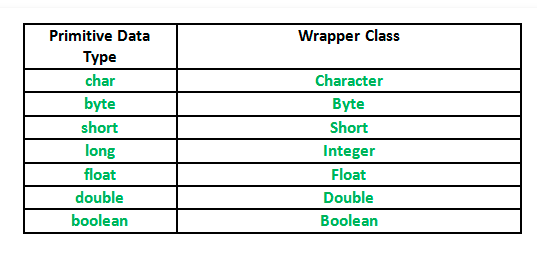
Primitive Data types and their Corresponding Wrapper class

Autoboxing and Unboxing

Autoboxing: Automatic conversion of primitive types to the object of their corresponding wrapper classes is known as autoboxing. For example — conversion of int to Integer, long to Long, double to Double, etc.

Take your career to new heights of success with Java Training
Example:

// Java program to demonstrate Autoboxing
import java.util.ArrayList; 
class Autoboxing 
{ 
 public static void main(String[] args) 
 { 
  char ch = 'a';
// Autoboxing- primitive to Character object conversion 
  Character a = ch;
ArrayList<Integer> arrayList = new ArrayList<Integer>();
// Autoboxing because ArrayList stores only objects 
  arrayList.add(25);
// printing the values from object 
  System.out.println(arrayList.get(0)); 
 } 
}

Output:

25

Unboxing: It is just the reverse process of autoboxing. Automatically converting an object of a wrapper class to its corresponding primitive type is known as unboxing. For example — conversion of Integer to int, Long to long, Double to double etc.

// Java program to demonstrate Unboxing 
import java.util.ArrayList;
class Unboxing 
{ 
 public static void main(String[] args) 
 { 
  Character ch = 'a';
// unboxing - Character object to primitive conversion 
  char a = ch;
ArrayList<Integer> arrayList = new ArrayList<Integer>(); 
  arrayList.add(24);
// unboxing because get method returns an Integer object 
  int num = arrayList.get(0);
// printing the values from primitive data types 
  System.out.println(num); 
 } 
}

Output:

24

Implementation

// Java program to demonstrate Wrapping and UnWrapping 
// in Java Classes 
class WrappingUnwrapping 
{ 
 public static void main(String args[]) 
 { 
  // byte data type 
  byte a = 1;
// wrapping around Byte object 
  Byte byteobj = new Byte(a);
// int data type 
  int b = 10;
//wrapping around Integer object 
  Integer intobj = new Integer(b);
// float data type 
  float c = 18.6f;
// wrapping around Float object 
  Float floatobj = new Float(c);
// double data type 
  double d = 250.5;
// Wrapping around Double object 
  Double doubleobj = new Double(d);
// char data type 
  char e='a';
// wrapping around Character object 
  Character charobj=e;
// printing the values from objects 
  System.out.println("Values of Wrapper objects (printing as objects)"); 
  System.out.println("Byte object byteobj: " + byteobj); 
  System.out.println("Integer object intobj: " + intobj); 
  System.out.println("Float object floatobj: " + floatobj); 
  System.out.println("Double object doubleobj: " + doubleobj); 
  System.out.println("Character object charobj: " + charobj);
// objects to data types (retrieving data types from objects) 
  // unwrapping objects to primitive data types 
  byte bv = byteobj; 
  int iv = intobj; 
  float fv = floatobj; 
  double dv = doubleobj; 
  char cv = charobj;
// printing the values from data types 
  System.out.println("Unwrapped values (printing as data types)"); 
  System.out.println("byte value, bv: " + bv); 
  System.out.println("int value, iv: " + iv); 
  System.out.println("float value, fv: " + fv); 
  System.out.println("double value, dv: " + dv); 
  System.out.println("char value, cv: " + cv); 
 } 
}

Output:

Values of Wrapper objects (printing as objects)
Byte object byteobj:  1
Integer object intobj:  10
Float object floatobj:  18.6
Double object doubleobj:  250.5
Character object charobj: a
Unwrapped values (printing as data types)
byte value, bv: 1
int value, iv: 10
float value, fv: 18.6
double value, dv: 250.5
char value, cv: a

To learn more about Wrapper Classes in Java and other great features of Java, you can enroll for a live demo on Core Java Online Training

Reporting in MicroStrategy Desktop and web

Reports that show your business data are the objective and aim of business intelligence. Reports help you to gather business insight through data analysis. The findings shown in any MicroStrategy reporting tool study are also a starting point for further investigation.

Open a report in MicroStrategy Desktop:

 Follow the steps above to log in to MicroStrategy Desktop.

  • In the Folder List on the left, expand MicroStrategy , expand Public Objects, and expand Reports.
  • Open the Subject Areas folder. 

To get in-Depth knowledge on Microstrategy you can enroll for a live demo on Microstrategy Online Training

Open a report in MicroStrategy Web:

 Follow the steps above to log in to MicroStrategy Web

  • Click the MicroStrategy icon and pick Shared Files.
  • Expand Topic Areas, increase Revenue and Productivity Research, and then press Category Sales Report to run the study and see the sample data results.

Components of a report in MicroStrategy Desktop

A standard grid report in MicroStrategy capabilities are in the image below.

micro repo 1.png
  • Columns and Rows:

Rows represent business concepts, typical report columns represent financial calculations that are important to the business, such as inventories, sales, costs , profits, wages, etc. MicroStrategy calls such measurements “metrics” such measurements.

  • Cells:

Each cell on a report contains a single value which is generated by calculating data collected from somewhere in the data source of your organization. In a reporting environment, that data is the focus of the business analysis.

Forms of Reporting:

You may view a report on the MicroStrategy from different perspectives, depending on the type of research we wish to do.

  • Grids:

The most commonly used type of report is a grid report. Grid View displays grid reports using a cross-tabular, formatted display of the report data.

Take your career to new heights of success with microstrategy training

micro grid.png

To see a report in Grid view, pick Grid from the View menu

  • Graph:

A graph report is a visual format representation of the data that can help you easily see overall trends, identify medians and exceptions, and so on.

The following figure shows the Bar Graph Style Graph View of a study.

micro graphs.png

To view a report in Graph view, select Graph from the View menu

  • Combined Grids and Graphs:

Grid Graph View is a side by side combination display of the Grid View and a report’s Graph View.

grids and graphs.png

To see a report in Grid Graph view, pick Grid Graph from the View menu

Get More Info On Microstrategy Training Online

View to SQL:

SQL View shows the SQL used in report generation. This view provides a good way to fine-tune and troubleshoot the data selection that is retrieved from your data source and displayed in reports.

The figure below shows the SQL View of a chart.

micro sql.png

Displaying multiple reports in one submission:

MicroStrategy however also offers other ways of displaying data. While working in MicroStrategy Desktop or Cloud, you might see business presentations of boardroom standard, invoices that go out to clients, all sorts of management reports and dashboards, and so on.

Documents on Report Services:

Papers for Report Services are available with the company MicroStrategy Report Services. Documents are a display of data from multiple reports, with added special formatting, interactive components, etc.

micro reports and services.png

In MicroStrategy Desktop to view sample documents:

1. Sign in to MicroStrategy Desktop .  Start your MicroStrategy Desktop for moves.

2. Expand the folder Public Objects, then expand the folder Reports.

3. Tap the Documents for Corporate Reporting folder.

4. To execute it and see the results, double-click any of the documents listed on MicroStrategy Desktop right-hand side.

See MicroStrategy Site for the sample documents:

1. Sign in to MicroStrategy Desktop . See Starting the Site on MicroStrategy Desktop for moves.

2. Click the icon for MicroStrategy Desktop. Then pick Shared Files.

3. Tap the Documents for Corporate Reporting tab.

4. To execute it and see the results, click any of the documents listed on the right side of the MicroStrategy Web.

Documents rendered in HTML:

An HTML document is another way of viewing and evaluating data when you choose to access several reports simultaneously. Aside from reporting results, HTML documents may include text, images, hyperlinks, tables, etc. HTML documents are one way of creating dashboards and scorecards, which are a group of related records that are shown together.

micro html.png

 OLAP services to MicroStrategy 

OLAP Services is a product that allows users of MicroStrategy Desktop, Web, and Office to use features that slice and dice data into reports without re-executing SQL against your data source. This improves performance by quicker display of data within a report as users evaluate and manipulate the data. OLAP Services determination:

Please click the View menu in MicroStrategy Desktop. If Report Artifacts appears as a choice you will have access to the product OLAP Services.

  • Filters to view:

A view filter is different from a report filter which restricts how much data from the data warehouse is retrieved. A view filter dynamically restricts the data displayed on the report without the report being re-executed against the warehouse. This feature provides better response time and reduced load on the database.

  • Derived measurements:

Derived metrics perform on-the-fly calculations using the data available in a report. They are a simple way to present data on the report already available in various ways, providing more analysis of the data.

  • Elements derivatives:

A derived element is a grouping of elements of the attributes on a chart. Such groups provide a new view of data from the study for purposes of analysis and formatting.

  • Aggregation Dynamics:

Dynamic aggregation allows you to change the level of on-the-fly report aggregation, while reviewing the results of the report. This feature allows the aggregation of metric values at different levels, depending on the attributes included in the report without having to re-execute the data warehouse report against it.

Reports and data for printing, emailing and exporting:

Print a report

To print a MicroStrategy Mobile report. You must do as follows.

1. To execute it double-click on any report. Opens the report.

2. Then select Print from the File menu. The dialog box on Print opens.

3. To preview the report before printing, click Print Preview to ensure it prints correctly. After the preview of the report is finished, click Print to return to the Print dialog box. See the Online Support for detailed instructions.

4. To alter the appearance of the report before printing click on Setup page. Click Print to return to the Press dialog box after making your changes. See the Online Support for specific instructions.

5. From the Name drop-down list select the printer.

6. The complete report is written, by design. In the field Pages, type page numbers to pick the pages to print.

7. The grid (i.e., the report results) is printed by default, but instead you can print the SQL statements by choosing what drop-down list to SQL from the Document.

8. Select Copy Number to print.

9. To print the Report, click OK.

To print a MicroStrategy Web report:

1. Click any report you wish to execute.

2. Select Export from Home menu, and then click PDF. The dialog box for Options for PDFs opens.

3. In the PDF Options dialog box determine the report scaling and orientation, and press Export. Opens the report in PDF format.

4. On PDF, choose Print from the File menu. The dialog box on Print opens.

5. Use the Print dialog box options to scale the report’s print size, and determine the number of copies to be printed.

6. To print the Report, click OK.

Data exporting:

You can export data to various formats or applications in MicroStrategy MicroStrategy Desktop and Web, such as a spreadsheet (.xls) or word processor (.doc) for example.

To configure MicroStrategy Desktop Export settings:

1. Open report.

2. From the Data menu, select Options to Export. The dialog box Options for Export options opens.

3. Make any changes needed to the export options. Select Support to show descriptions of each environment.

In MicroStrategy Site, configure export settings:

1. Open the report.

2. Select Export from the Home menu, and then select the format required for the production. Open the Options to Export tab.

3. Make any changes needed to the export options. Select Support to show descriptions of each environment.

MicroStrategy Desktop to export data:

1. Open a folder, and point to Export To from the Data menu.

2. Choose the appropriate format to export the file to. Support is given for the following applications or file types:

  • Microsoft Accounts
  • Excel Microsoft
  • Term by Microsoft
  • An HTML Date
  • A video text file
  • Email Address

Exporting data to MicroStrategy Web:

1. Select Export from the Home menu, and then select the format necessary for the production.  Open the Options to Export tab.

2. Make any required export settings changes, and click Export. The Report displays in the selected application automatically.

Conclusion

I hope you reach to a conclusion about Reporting in MicroStrategy services. You can learn more through MicroStrategy Course.

Explain Java scanner class and constructor with example?

Java has several classes in its components. In this article, I would like to mention java scanner class. The java scanner class consists of following

  • Java scanner class 
  • Class constructors
  • Java  scanner class modifier

So first let us see in brief about Java scanner class.

Java scanner class:

Java Scanner Class is a class in java.util package that uses primitive types such as int, double, etc., and strings to get data. Reading input in a Java program is the simplest way.

Typically we transfer the predefined object System.in, which represents the default input stream, to build a Scanner class object. If we want to read input from a file, we can transfer an object in class File.

The feature to use is nextXYZ()for reading numerical values of a given data form XYZ. For example, we can use nextShort()To read strings, we use nextLine()to read a short type value.

To get in-Depth knowledge on Java you can enroll for a live demo on Java Online Training

We use next charAt(0), to read a single character. If you want to return to next character in the string use next() function, the next token or word in the input string and to return first character we use charat()The Java scanner class has the following components

  • Class constructors
  • modifiers

Class constructor in java:

These are several class constructors in java scanner class.

  1. Scanner(File source) 

Builds a new Scanner which produces scanned values from the specified file.

  1.  Scanner(File source, String charsetName)

 Constructs a new Scanner which generates scanned values from the specified file.

  1.  Scanner(InputStream source) 

Builds a new Scanner which produces scanned values from the specified input stream.

  1.  Scanner(InputStream source, String charsetName) 

Constructs a new Scanner which produces scanned values from the specified input stream.

  1.  Scanner(Readable source)

 Constructs a new Scanner which produces scanned values from the specified source.

  1.  Scanner(String source) 

It Creates a new Scanner that produces scanned values from the given Java string.

  1. Scanner(ReadableByteChannel source) 

It Creates a new Scanner that generates values scanned from the channel specified.

  1.  Scanner(ReadableByteChannel source, String charsetName) 

Builds a new Scanner that produces values scanned from the channel in question.

  1. Scanner(Path source) 

Builds a new Scanner which produces scanned values from the specified file.

  1.  Scanner(Path source, String charsetName) 

Constructs a new Scanner which generates scanned values from the specified file.

Take your career to new heights of success with Java Training

Java scanner class methods:

The following are java methods. I listed out the modifiers and the method of using it

Vacuum

 Method: close()

We use this scanner  to close.

Pattern 

Method: delimiter()

We use the pattern that the Scanner class actually uses to suit boundaries to get it.

 Stream

Method:  < MatchResult > findAll()

We use it to find a match string matching the specified pattern list.

 String 

Method: findInLine()

We use it to find the next occurrence of a pattern constructed from the specified string, ignoring boundaries.

 String find

Method: WithinHorizon()

We use it to detect the next occurrence of a pattern constructed from the specified string, ignoring boundaries.

 Boolean 

Method:  hasNext()

If this scanner has a different token in its input, it will return valid.

Boolean 

Method: NextBigDecimal()

We use it to test whether or not the next token in the input of that scanner can be interpreted as BigDecimal using the nextBigDecimal()process.

Boolean 

Method: NextBigInteger()

It Checks whether or not the next token in the input of this scanner can be interpreted as a BigDecimal using the nextBigDecimal()process.

 Boolean 

Method: NextBoolean()

We use it to test whether or not the next token in the input of the scanner can be interpreted as Boolean using the nextBoolean()process.

 Boolean 

Method: NextByte()

We use it to check whether or not the next token in the input of this scanner can be interpreted as a Byte using the nextBigDecimal()process.

Boolean

Method:  NextDouble()

We use it to test whether or not the next token in the input of that scanner can be interpreted as BigDecimal using the nextByte()method.

 Boolean 

Method: NextFloat()

It Checks whether or not the next token in the input of this scanner can be interpreted as a Float using the nextFloat()form.

Boolean 

Method: NextInt()

We use it to evaluate whether or not the next token in the input of this scanner can be interpreted as an int using the nextInt()process.

 Boolean 

Method: NextLine()

We use it to verify if the input of this scanner has a different line or not.

 Boolean 

Method: NextLong()

We use it to test whether or not the next token in the input of the scanner can be interpreted as a Long using the nextLong()process.

 Boolean 

Method: NextShort()

We use it to test whether or not the next token in the input of the scanner can be interpreted as a Short using the nextShort()process.

IOException

 Method: ioException()

We use it to get the last thrown IOException readable by this Scanner.

Local locale()

Method: We use it to get a Scanner class Local.

 MatchResult 

Method: match()

The result of the last scanning operation performed by this scanner is used to get match.

String 

Method: next()

We use it to get the next complete token from the scanner you are using.

BigDecimal 

Method: nextBigDecimal()

It Scans the BigDecimal token next to the data.

BigInteger 

Method: nextBigInteger()

It Checks the next input token as a BigInteger.

 Boolean 

Method: nextBoolean()

It Scans the next input token into a boolean value, returning the value.

 Byte 

Method: nextByte()

It Checks the next input token as byte.

 Double 

Method: nextDouble()

It Scans the next input token as double.

 Float

Method:  nextFloat()

It Checks the next input token like a float.

int 

Method: nextInt()

It Scans the next Input token as an Int.

 String 

Method: nextLine()

The input string which was skipped from the Scanner object is used to get.

 Long 

Method: nextLong()

It Scans the next input token as long.

Short 

Method: nextShort()

It Scans the next input token as short.

 int 

Method: radix()

The default radix for use with the Scanner is used.

Void 

Method: remove()

We use it when this Iterator implementation does not support the remove operation.

 Reset()

We use Scanner to reset the Scanner currently in use.

 Scanner 

Method: skip()

It Skips input that fits the specified sequence, ignoring boundaries 

 Stream 

Method: < String > tokens()

We use it to get a delimiter-separated tokens stream from the Scanner object being used.

 String 

Method: toString()

It is for using the Scanner string representation.

 Use

Method: Delimiter()

Scanner is used to set the Scanner bonding pattern in use to the specified pattern.

Use

Method: Locale()

Scanner to set the locale object of this scanner to the specified locale.

 Scanner 

Method: useRadix()

We use The default Scanner radix for the specified radix.

Example for java scanner class:

Let us see a simple example program for java scanner class.

import java.util.*;  
public class ScannerExample {  
public static void main(String args[]){  
          Scanner in = new Scanner(System.in);  
          System.out.print("Enter your name: ");  
          String name = in.nextLine();  
          System.out.println("Name is: " + name);             
          in.close();             
          }  
}  

By running this program in the compiler you get output of entered name.

Conclusion:

I hope you reach a conclusion about the Java Scanner class by reading this article. You can learn more about Java scanner class, constructor classes, modifiers through java certification course from industry experts.

Explain about MicroStrategy?

MicroStrategy:

MicroStrategy is one of the BI application software. It supports a collective dashboard, highly detailed reports, ad-hoc queries, as well as Microsoft Office integration. It also supports mobile BI. With the help of this, we can connect with any data such as big data, flat files, social media data, etc. It offers a spontaneous way to create and modify BI reports.

 MicroStrategy uses:

  • This can connect with existing enterprise apps and systems.
  • It is a useful tool for solving big data-related problems. 
  • This provides features for mobile analytics. 
  • It allows us to directly access a database with in-memory.
  • It can provide advanced and predictive analytics items.

To get in-Depth knowledge on Microstrategy you can enroll for a live demo on Microstrategy Online Training

The architecture of Microstrategy:

     This  Architecture  build with a three-tier structure. The following diagram shows the MicroStrategy Architecture. 

The First-tier consists of two databases. They are

Data warehouse:

It can contain the users analyzing information. That information is generally stored at the data warehouse using an extraction, transformation, and loading(ETL) process. The online transaction processing(OLTP) is the main source of the ETL process to get original data.  The different number of data warehouses can contain one metadata project. And one project can have more than one data warehouses. 

Take your career to new heights of success with microstrategy training online

Metadata:

This provides information about your Microstrategy projects. Metadata is like an index to the information. It stores in your data warehouse. The microstrategy system uses metadata to know information about the data warehouse. And also it stores different types of objects to access the information. The metadata contains a database, metadata repository i.e used to separate your data warehouse.

The second tier consists of Microstrategy Intelligence Server. This is the main part of the Microstrategy system. This server always must run to provide the users to get information from the data warehouse. With the help of  MicroStrategy Web or Developer, we can easily get the information from the server. It generates reports. Those are stored in metadata across a data warehouse. And also it passes the results of reports to the users.

Finally, the third-tier consists of Web or mobile Server. It delivers the reports to a client. The Microstrategy Web client, Library Client, Desktop Client provides documents and reports to the users.

Get More info On microstrategy courses

Various objects in MicroStrategy:

Microstrategy provides different types of objects that appear in the system layer. Most of the reports have specific business objects. Those objects are used to get collective data from the data sources.  

 The below diagram shows the various objects.

Administration objects:

   The Administration objects include things such as users, database instances, database login IDs as well as schedules. If we login to Microstrategy developer as an admin, then we will get an administration option at the secure enterprise. After opening this option we see various objects. It looks as below diagram.

The Administration objects have four sections. They are

System Administration

It provides various objects and also allocates clusters to the projects.

System Monitor:

This helps in identifying the status of the Microstrategy environment. It contains the below options.

  •  Jobs control the currently executing jobs.
  •  User Connections Monitor the number of user connections at a given time
  • Cashes controls the number of cashes and their sizes.

User Manager:

These are used by the admins to manage the Microstrategy users, It is used to handle the following user configurations. Those are

  •  User authentication uses to allow the user into the environment.
  •  User groups allow a number of users to assign a specific privilege.
  •  Privilege is used to provide features that are available in the environment.
  •  User permissions are used to allow or disallow the use of a specific object.

Schema objects:

Schema Objects are the logical view of the structure of the data warehouse. These objects are using during the creation of the Microstrategy project. If you want to see the schema objects, then login to Microstrategy developer as administrator. Then first click on the Schema object option. The following screen shows the various schema objects.

The Schema objects contain the following things.

  • Facts are the numeric values. They can be used to represent the value of some business data.
  • Attributes represent the granularity of data in the facts table. They show detailed data to the business.
  • Hierarchies represent the relationship between various values. They help in bring out drill-up and drill-down analysis on the data.
  • Functions and operators provide various mathematical functions and operators in Microstrategy to apply calculations to the data.
  • The table represents data in tabular form.
  • Transformations are provided data transformation features that are used for time-series based analysis of the data.

Report object:

These objects are build from application objects which are used for the business scenario. These objects provide the set of data for the user reports. As well as shows the relationship between the different data elements. To get the report object, first open the report and click on the report object icon as shown below diagram.

 In this example, we have three reports attributes. They are

  • The Category attribute showing the category of the products sold.
  • Region attribute shows the region of the products sold
  • The year attribute contains two matrices objects such as profit and revenue.

Features of MicroStrategy:

The following are the MicroStrategy features:

  • We can use it easily as well as provides self-service.
  • It offers the highest user capability.
  • It contains a plug and plays components.
  • This contains the highest report scalability as well as the highest data scalability.
  • With the help of this, we can format grid reports using a range of built-in styles.
  • It allows us to convert tabular reports in the form of graphs as well as charts.
  • This allows us to export in MS-Excel, HTML or text formats.

 In this article, I have explained about micro strategy and its architecture as well as its objects. I hope this article gives information about the need for MicroStrategy nowadays. Excel your career through Microstrategy online training.

ServiceNow Asset Management: Relevant to ServiceNow Admin

ServiceNow Asset Management helps to automate the IT asset life cycles with intuitive and attractive workflows. Servicenow Admin looks after the Asset management that integrates the physical, technological, and financial aspects of IT assets. Moreover, IT asset management is any information, system, or hardware that is useful in the course of major business activities. 

Most IT services run on IT assets. This is an asset base that poses various challenges and opportunities from management, cost, and risk areas to reduce risk and minimize cost, entities need to know the hardware assets they use. Moreover, the location of those assets, usefulness, and how they are used, cost, and the value they deliver are the aspects are important to know. The ITAM tracks financial information and resources, while the CMDB tracks CI details and relationships among them.

Let us discuss Asset Management within the interest of ServiceNow Admin. Moreover, there are many things to know within ServiceNow Asset management.

To Get the best real time knowledge on ServiceNow Admin Training by liveexperts through online with real world use cases.

Role of ServiceNow admin towards ServiceNow asset management

The ServiceNow admin is capable of tracking all aspects including the finances, contract management, inventory, and complete asset information. Besides, the platform helps to record all actions and transactions. It also helps to gain full control and audit capacities from initiation to retirement.  The role of ServiceNow admin becomes crucial in this regard. 

Control

To optimize asset investment and provide extreme services relating to various aspects. the admin has to follow relevant regulations in this regard. Besides, the admin also controls the activities within the system by applying various ideas. 

Take your career to new heights of success with servicenow administrator certification

Efficiency to Savings

The admin should involve in the automation of lifecycle processes to save on manpower investment. He also looks into minimizing waste resources and avoids repetitive tasks. Moreover, this will help to make savings for the business and growth in the market. 

Process Control Mitigates Risk

The professional is responsible to lead employees and customers with process flow management. It ensures internal and external compliance management.

Single Source of Information

The ServiceNow admin maintains all the data in one secure application that is Asset management. It removes irrelevant systems & processes. Moreover, it combines asset management and configures information by linking with the ServiceNow CMDB. 

Seamless Asset Provisioning

Asset Management makes it easy to create a purchase order using a few clicks. These assets are tracked and they are automatically created within the system. Moreover, the asset records are created cleanly with complete data. This data related to the asset model, request, order, cost, etc. And the provisioning of these assets carried on without any delay.

HR Asset On-boarding

Asset management provides the capability to source, configure, and implement hardware and software. While HR Onboarding Case functions it includes the following;

  • Standard items selection like computers, mobile devices, software, monitors, printers, etc.
  • Sourcing assets from the stock held
  • Purchasing and collecting assets those not available in stock
  • Deployment of assets requested within the time frame. 

The ServiceNow Asset Management tracks the key T&Cs of contracts and makes them easy to search. Furthermore, it includes management for version control and storage of electronic documents securely. 

ServiceNow Asset Management implementation

Many processes are involved in ServiceNow projects. These processes help the project or any other work to carry on smoothly. Moreover, ServiceNow asset management includes the following process of implementation. 

Configuration Management

This management works with the technical team of Asset Management. Moreover, it covers the maintenance stage of the asset life cycle at every moment. Therefore, the user or ServiceNow admin should use it for tasks related to asset management. Such as incidents, issues, or changes related to a particular asset. These tasks make the function easier to perform and get the result.

Request Management:

This is useful to enable the users to browse Service Catalog and order new assets by filling forms. Moreover, handling request workflows are also included in ServiceNow Asset Management. These are concerning ServiceNow Admin to process them properly. There are many requests come through in daily sessions but they are to be handled smartly. 

Procurement 

As the users request an asset that is not in the disposal this module comes in action to create purchase orders. Moreover, it looks after the entire purchase life cycle from start to receipt. This module helps as an alternative to Asset Management by covering the purchase stage of the asset life cycle. All the process is done in the presence of ServiceNow Admin. These help him to get better ideas. 

Servicenow Asset Management use cases

There are so many uses of ServiceNow Asset Management with relevance to ServiceNow admin within the interest of any business unit. A few of these uses or benefits have been discussed below.

  • Using ServiceNow Asset management, the ServiceNow Admin helps to control purchased inventory and its usage while cutting the costs.
  • It helps to manage the whole asset life cycle from planning to disposal of the various company assets.
  • This is used to regulate along with relevant processes, standards, and regulations of the company.  It helps to take action on regulations and cost valuations for the list of publishers.
  • ServiceNow Asset Management helps to review licenses and optimize positions for the most complex products. The system is useful to improve time-value by automating the process of importing data. This is useful to buy it with proper validations. 
  • It is used to assess the exposure and impact of the various software issues. Besides, it helps to reduce software expenses by identifying shadow IT and capacities.
  • Moreover, the SNow admin helps to improve the end-user experience with faster purchase and deployment of assets. This is done within the company’s standards.
  • Get the business results in a fast manner. Moreover, it explores software data workflow to be fast to deliver value to the assets using various platforms.
  • It helps to provide better knowledge and control over the assets that enable them to make better decisions. 
  • Determine the asset costs in their actual lifecycles as a whole. 
  • This helps to simplify audit preparations and makes change management very strong. 
  • The Asset Management automates the process and tracks the details of hardware and devices. 
  • Moreover, using asset management, payment of contract information is also tracked. It includes the ability to generate expense ideas on a proper schedule. 
  • Contract management also includes reports, dashboards, and notifications, etc. It ensures that all parties are fully aware of pending expirations, or subscriptions.

ServiceNow Asset Management roles

The ServiceNow Asset Management (AM) roles and responsibilities are of many types. These include; SAM admin, sam user, sam contract manger, model manager, etc. This role has full access to the Asset  Management application. This role requires importing assets, managing and reconciliation rules, etc.

Moreover, they are creating custom products and general rules, etc. Generally, the role of ServiceNow admin is responsible for general support, admin, etc. Moreover, he looks into the maintenance of the ServiceNow platform and its applications. The admin has to look after the system development and the automation process also. The above roles also relate to the (SN) Servicenow admin. He is the person who authors all the activities within the ServiceNow Asset Management. 

Focusing on Asset management, ServiceNow Admin has to refer to some complex activities of it. Besides, Assets can be of different types within a company.  But ServiceNow covers the number of assets available in its base system. 

ServiceNow Asset Management lifecycle

The lifecycle of ServiceNow asset management controls all the associated financial aspects of each asset from purchase to disposal. These criteria include:

  • Acquisition
  • Lease Cost
  • User Support
  • Manage Contract
  • Labor charges
  • Forecast budgets
  • Optimize lifecycle
  • Decision making

The above criteria are useful to define the admin’s role within Service Now. Moreover, by using the SN Service Catalog, ServiceNow admin can perform the following tasks:

  • He can able to set and enforce various rules and policies
  • Manages service and instrument contracts
  • Auto validates requests and processes
  • Audit program of various activities and services
  • Control risks and identifies unethical use
  • Moreover, it is also useful to optimize lifecycle investment to provide better IT services to the world. 

Moreover, the users can receive multiple assets for a purchase order in a single process on the mobile application. They are also able to request assets, view assets, and report incidents using a mobile device easily. 

ServiceNow Asset Management pricing

ServiceNow offers its customers and clients a fairly simple 15-day free trial. This is because most of the competitors offer 30 days. Moreover, the Express version is useful to those who are starting. And this version costs $10,200 per license p.a.

The Enterprise version allows more tracking across the business. Moreover, it had more features than the Express version. The pricing for the Enterprise version was started at $42,000 per year. Further, the price for asset discovery in both versions was $0.20 per node per month. Today ServiceNow is offering limited flexible plans to their customers. This includes a costing of license starting from $10,000 p.a. 

Thus, the above article explains the ServiceNow asset management concerning the ServiceNow Admin. It gives an idea of the working management and asset lifecycle of the whole process. Besides, the admin is the person who controls the whole process within the ServiceNow and its asset management. Not only asset management, but it provides various other products and services also. Using these various services, many business clients and users get satisfied. Furthermore, it’s a complete package of various activities that manage and control from start to end. 

Get more practical insights on ServiceNow and its varied products and services through ServiceNow Admin Online Training from the industry best. IT Guru is the platform in this regard to get concise and latest skills to plan for a better future. 

Design a site like this with WordPress.com
Get started